


Have you ever opened your website and noticed that it takes too long to load? Maybe your homepage appears slowly, images take several seconds to show up, or buttons do not respond when you click them. If you are experiencing these problems, you are not alone.
A slow website can affect almost any type of website, including WordPress blogs, business websites, online stores, and news websites. It can frustrate visitors and make it difficult for them to read your content or complete an action. Why Is My Website Loading Slowly
But here is the important thing: you should not try to fix your website speed until you understand what is making it slow.
For example, your website might be loading slowly because you uploaded large images. Another website might have a good image setup but still experience delays because of its hosting server, unnecessary JavaScript, or missing caching.
This means that changing your hosting provider or installing a speed optimization plugin will not necessarily solve your problem.
In this guide, I will explain 12 common reasons why websites load slowly and show you how to investigate and fix each problem. You will also learn how to test your website speed for free, understand Google’s Core Web Vitals, and avoid common mistakes during optimization.
Let’s start with the most common problem.
1. Large Images Are Slowing Down Your Website
One of the first things I recommend checking when a website loads slowly is its images.
Images make blog posts, product pages, and landing pages more attractive. However, large image files can take longer to download, especially when visitors use a slow internet connection or a mobile device.
Imagine you have written a blog post and added a photograph that is 6 MB in size. If the image only needs to appear at a width of 800 pixels, uploading the original full-size photograph may be unnecessary.
Your visitors could end up downloading much more data than the page actually needs.
How to Fix Large Images
Start by opening a few of your slowest pages and checking their images. Look for photographs, banners, screenshots, and other graphics with unnecessarily large file sizes.
Here is what you should do.
Resize your images: Make sure each image has dimensions suitable for the space where it appears. A small thumbnail does not need the same dimensions as a large banner.
Compress your images: Image compression reduces file size while keeping the image looking reasonably clear. Check the result before uploading it to your website.
Use modern image formats: Formats such as WebP and AVIF can reduce file sizes compared with some traditional formats, depending on the image and compression settings.
Avoid loading unnecessary images: Only include images that help explain your content or improve the reader’s experience.
Use lazy loading where appropriate: Images further down a long article can often load when visitors approach them. However, do not lazy-load the main visible image if doing so delays the page’s Largest Contentful Paint (LCP).
You do not need to make every image as small as possible. Your goal is to reduce unnecessary file size without making important visuals blurry.
If your website contains hundreds of oversized images, start with your homepage and the pages that receive the most visitors. You can optimize the remaining images gradually.
2. Your Web Hosting May Be Too Slow
Another possible reason for a slow website is your hosting service.
Hosting is where your website’s files and related resources are stored. When someone visits your website, their browser may need to communicate with your server before it can display the page.
If the server takes too long to respond, the visitor may have to wait even before the page begins displaying its content.
This can happen for several reasons, including limited server resources, heavy traffic, inefficient website code, or database problems.
However, do not assume that affordable shared hosting is always slow. Many websites run well on shared hosting. Problems are more likely when a website outgrows its available resources or the server becomes overloaded.
How to Check Whether Hosting Is the Problem
First, test several pages on your website rather than checking only the homepage.
If unrelated pages repeatedly show slow server response times, investigate your hosting environment alongside other possible causes.
You can also check your hosting dashboard for CPU usage, memory limits, error logs, and other resource information if your provider makes these available.
Before paying for a more expensive hosting plan, check whether unnecessary plugins, background processes, or inefficient database queries are consuming resources.
If your website continues to experience slow server responses after reasonable optimization, compare other hosting options based on reliability, support, available resources, and performance.
Remember, expensive hosting does not automatically mean a faster website. Choose a service that fits your website’s actual needs.
3. Too Many Plugins and Third-Party Scripts
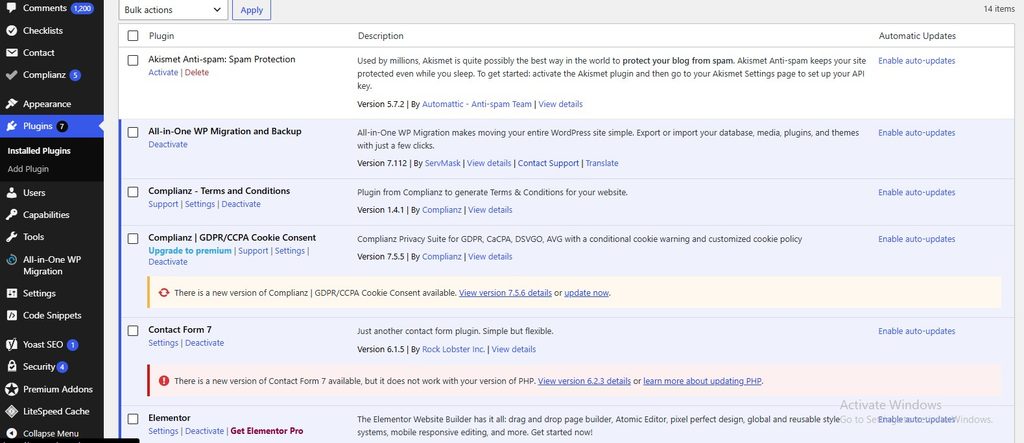
If you use WordPress, plugins make it easy to add features without writing code yourself. You can install plugins for SEO, contact forms, security, analytics, image optimization, and many other tasks.
The problem starts when plugins or external scripts introduce unnecessary work.
Some plugins load additional JavaScript and CSS files, make frequent database requests, or run background processes. Third-party services, such as chat widgets, advertising systems, and social media embeds, can also add loading delays.
But there is something important to understand: having 30 or 40 plugins does not automatically mean your website is slow. One poorly optimized plugin can have a greater impact than several lightweight plugins combined.
How to Reduce Unnecessary Plugins and Scripts
Start by reviewing the plugins installed on your website.
Ask yourself whether you still need each plugin and whether two plugins provide the same features. If a plugin is no longer needed, remove it carefully after checking that your website does not depend on it.
Next, look at third-party scripts.
For example, a live chat widget may be useful on your contact or sales pages, but it may not be necessary on every informational article.
Avoid disabling important security, backup, or website management features just to improve a speed score.
If you suspect a particular plugin is causing a problem, investigate its performance impact and test your website after making changes. Keep a backup before modifying important functionality.
The goal is not to use the fewest plugins possible. It is to keep the features you need while avoiding unnecessary work.
4. Your Website Is Missing Proper Caching
Caching is another important part of website performance.
In simple terms, caching allows a browser or server to reuse certain files or previously generated content instead of creating or downloading everything again.
Without appropriate caching, a dynamic website may repeatedly perform the same work every time someone opens a page.
For example, a WordPress website might need to retrieve information from its database and generate an article page. With suitable page caching, the website may be able to serve a saved version of that page to later visitors.
This can reduce server workload and improve loading times.
Different Types of Website Caching
There are several types of caching, and each serves a different purpose.
- Browser caching: Allows a visitor’s browser to reuse eligible files from previous visits.
- Page caching: Stores generated page content so the server does not need to recreate it for every request.
- Object caching: Reuses frequently requested data generated by the website application.
- CDN caching: Stores eligible resources on a content delivery network so they can be delivered from locations closer to visitors.
Not every website needs every type of caching. A simple static website may already perform well, while a busy WordPress website may benefit considerably from page caching.
How to Fix Caching Problems
If you use WordPress, check whether your hosting provider already includes caching.
If caching is available, review its configuration before installing another plugin. Choose a solution that works with your hosting environment and existing optimization tools.
Avoid enabling multiple plugins that perform the same caching functions. Overlapping settings can cause unexpected problems.
After making changes, open important pages and confirm that they display correctly and show recent updates.
Be especially careful with websites that have shopping carts, logged-in accounts, or personalized content. Some pages should not be served from a shared cache.
5. Too Much JavaScript and CSS
JavaScript and CSS help your website work and look the way you want.
CSS controls visual elements such as colors, spacing, fonts, and layouts. JavaScript adds interactive features such as dropdown menus, sliders, forms, and dynamic content.
These resources are useful, but poorly managed files can delay page loading or make the website less responsive.
For example, a theme might load scripts for several features that are not used on a particular page. A browser may still need to download, process, or execute those scripts.
Large CSS files can also require additional work before the browser can display certain content.
How to Improve JavaScript and CSS Performance
Start by testing an important page with a tool such as Google PageSpeed Insights. Review the recommendations and identify which resources appear to be causing delays.
Then consider these improvements:
- Remove unnecessary scripts and styles where it is safe to do so.
- Avoid loading features across the entire website when they are needed on only a few pages.
- Use minification where appropriate to reduce unnecessary characters in code files.
- Defer non-critical JavaScript when the scripts can safely run later.
- Consider critical CSS techniques when they are appropriate for your website.
Be careful when changing how scripts load. Some features depend on other scripts, and changing their order can break navigation menus, forms, search functions, or other website features.
After adjusting, test the affected pages instead of assuming the change worked.
You do not need to remove every script from your website. You need to make sure the resources you load provide enough value to justify their cost.
6. Your Website May Benefit From a Content Delivery Network
A content delivery network, commonly called a CDN, distributes eligible website resources across servers in different geographical locations.
When a visitor requests a cached resource, the CDN may deliver it from a nearby server rather than sending every request to your website’s original hosting server.
This can reduce network delays for visitors who live far away from your main server.
For example, suppose your website is hosted in Europe, but many of your readers live in Australia. The distance between those visitors and your server may affect how quickly some resources arrive.
A CDN can help by delivering eligible images, CSS files, JavaScript files, and other resources from locations closer to your audience.
Does Every Website Need a CDN?
No. A CDN is not essential for every website.
If most of your readers live near your hosting server and your website already performs well, you may not need a separate CDN.
It can be more useful when your audience is spread across different countries, your website serves many static resources, or you experience substantial traffic.
Before setting one up, check whether your hosting provider already includes CDN functionality.
Also, understand the configuration before changing DNS or security settings.
Keep in mind that a CDN will not automatically fix oversized images, inefficient application code, or an overloaded server. It addresses particular delivery problems rather than every possible cause of slow loading.
7. Too Many Redirects
A redirect sends a visitor from one URL to another.
Redirects are useful when you change a page’s URL, move your website to a new domain, or direct an HTTP address to its HTTPS version.
However, unnecessary redirect chains can introduce additional delays.
Imagine someone opens an old article URL. That address redirects to a second URL, which redirects to a third address before the browser finally reaches the correct page.
Each additional step can require another response before the browser continues.
How to Fix Redirect Problems
Start by checking the URLs used in your navigation menus, internal links, sitemap, and other important parts of your website.
Where possible, link directly to the final destination instead of sending visitors through several redirects.
For example, if an old article URL redirects to a new URL, update your internal links to point directly to the new address.
Make sure necessary redirects, such as HTTP-to-HTTPS redirects, continue working correctly.
Do not remove every redirect just to reduce the total number. Redirects are often important for preserving access to moved pages and helping visitors reach the right content.
If you recently changed your domain name or permalink structure, review your redirect rules carefully.
8. Your Website’s Database May Be Causing Delays
If your website uses WordPress or another content management system, it may rely on a database to store articles, settings, user information, and other content.
Database problems can contribute to slow page generation, particularly on websites that run many queries or have limited server resources.
Over time, a website may also accumulate old revisions, temporary records, or information left behind by plugins.
However, a large database is not automatically a slow database. The way queries are written, how tables are organized, and how much server capacity is available can also affect performance.
How to Investigate Database Problems
If your website is consistently slow, check whether the delay appears to happen before the server starts sending the page content.
Your hosting dashboard may provide useful database reports, resource information, or error logs.
If you use WordPress, review plugins that perform frequent database operations and investigate whether scheduled tasks or background processes are consuming resources.
You may also use suitable database monitoring tools or ask your hosting provider to investigate slow queries.
Database cleanup can remove certain unnecessary records, but you should not delete data without understanding what it does.
Before changing database tables, create a reliable backup. If you are unsure which records are safe to remove, ask a qualified developer for help.
The best approach is to identify the actual database problem before attempting a cleanup.
9. Your Theme or Page Builder Is Too Heavy
Your website theme affects its layout, design, and many of the resources used to display your pages.
Some themes and page builders include sliders, animations, background videos, decorative effects, and other advanced features.
These features can make a website look attractive, but they may also introduce additional scripts, styles, images, and network requests.
For example, a homepage with several animated sliders may require more resources than a simple homepage with a clear heading, a few images, and links to important articles.
That does not mean every page builder is slow. Performance depends on the theme, the way it is configured, and the features used on the page.
How to Improve Theme Performance
Start by reviewing your website design.
Ask yourself whether every animation, slider, widget, and decorative element genuinely helps visitors.
If a feature adds little value, consider replacing it with a simpler alternative.
You should also avoid loading unnecessary fonts and large background images.
If you are choosing a new theme, test it with realistic content rather than relying only on its demonstration website. A demo may use different hosting, images, plugins, and caching settings from your actual website.
Before switching themes, create a backup and test the new design in a staging environment if possible.
Your goal is to create a website that looks professional and remains easy to use without loading unnecessary resources.
10. Too Many Advertisements and Embedded Elements
Advertisements, videos, maps, social media posts, and other embedded elements can add extra loading work to your pages.
For example, an article containing several embedded videos may need to load additional scripts and communicate with external services.
Advertising systems can also introduce third-party resources. Their impact varies depending on how the ads are implemented and which resources are loaded.
If your page feels slow despite having reasonably sized images and a simple design, these elements are worth investigating.
How to Reduce Their Impact
Review your articles and remove embedded elements that do not provide meaningful value.
Where appropriate, use click-to-load previews for videos or other third-party content. This allows visitors to load the full element when they choose to interact with it.
You can also lazy-load eligible content that appears further down the page.
Avoid placing large interactive elements above the main content unless they serve a clear purpose.
If you display advertisements, follow the advertising platform’s implementation guidance and pay attention to how ads affect loading and page layout.
You do not necessarily need to remove advertisements. First, investigate whether they are contributing to a meaningful performance problem and consider less disruptive configurations.
Also check whether images, ads, or embedded elements cause text to move unexpectedly while the page loads. Keeping the layout stable makes the website easier to read.
11. Your Website Is Not Working Well on Mobile Devices
Have you ever noticed that a website feels fast on your computer but becomes slow when you open it on your phone?
This can happen because mobile devices may have different processing power, screen sizes, and network conditions.
Large images, complex animations, and heavy JavaScript can place additional demands on mobile devices. Even when a page appears on the screen, buttons may remain unresponsive if the browser is still busy processing scripts.
A website can also be difficult to use on mobile devices when its layout is not properly optimized.
How to Improve Mobile Website Performance
Start by testing your homepage and several important articles on a smartphone.
Check whether text is readable, images fit the screen, and navigation menus work properly.
Make sure pop-ups and sticky elements do not cover important content. Where appropriate, use responsive images so smaller screens do not need to download unnecessarily large files.
Next, review your mobile performance using Google PageSpeed Insights.
Pay attention to Google’s Core Web Vitals, which measure important parts of the user experience.
| Metric | Recommended good result | What it measures |
|---|---|---|
| Largest Contentful Paint (LCP) | 2.5 seconds or less | How quickly the main visible content loads |
| Interaction to Next Paint (INP) | 200 milliseconds or less | How quickly the page responds to user interactions |
| Cumulative Layout Shift (CLS) | 0.1 or less | How stable the page layout remains while loading |
These thresholds are assessed at the 75th percentile of visits, separately for mobile and desktop when sufficient real-user data is available.
Do not focus only on the score. Identify the specific problems that make your website slow or difficult to use on a phone.
You can learn more through Google’s official Core Web Vitals documentation.
12. Your Website Is Experiencing Traffic Spikes or Server Problems
Sometimes a website becomes slow even though you have not changed its design, plugins, or content.
One possible reason is a sudden increase in traffic.
Imagine you publish an article that becomes popular on social media. Hundreds or thousands of people may visit your website within a short period.
If your server cannot handle the additional workload, pages may respond slowly or return errors.
Other possible causes include scheduled backups, resource-intensive background tasks, database contention, or temporary problems at your hosting provider.
How to Find the Cause
First, check whether the slowdown affects your entire website or only certain pages.
Then review your website analytics, hosting resource reports, and available error logs.
If the problem started suddenly, compare the timing with recent plugin updates, website changes, traffic increases, and scheduled tasks.
Contact your hosting provider if server response times remain unusually high or your website repeatedly returns server errors.
Do not assume that every traffic-related problem requires an expensive hosting upgrade. A faulty plugin, background process, or inefficient database query may be responsible.
If your website regularly receives large traffic spikes, discuss suitable resource limits, caching options, and scaling arrangements with your hosting provider.
The right solution depends on what is causing the server to struggle.
How to Test Your Website Speed for Free
Now that you understand the common causes, let’s look at how you can investigate your own website.
You do not need to purchase an expensive tool to get started. Google’s free tools provide useful information about website performance.
1. Google PageSpeed Insights
PageSpeed Insights tests an individual page and provides information about its loading performance, responsiveness, visual stability, and potential improvements.
Open PageSpeed Insights, enter the URL of your homepage or an important article, and run the test.
Review both mobile and desktop results. If your mobile results are weaker, pay attention to the recommendations that could improve the experience on smaller devices.
You can access the tool here: https://pagespeed.web.dev/
2. Google Search Console
Search Console helps you understand how your website appears in Google Search. It also provides Core Web Vitals reports for eligible groups of URLs when sufficient field data is available.
If your website has been verified, open Search Console and review the relevant reports.
These reports can help you identify groups of pages that may need attention, although they do not always identify the exact technical cause.
3. Your Hosting Dashboard
Your hosting dashboard may provide information about server resource usage, errors, and database performance.
This information can be particularly useful when several pages have unusually slow server responses.
A Simple Website Speed Testing Process
Follow these steps when you want to investigate a slow page:
- Choose an important page, such as your homepage or a popular article.
- Test it using PageSpeed Insights.
- Review the mobile and desktop results separately.
- Identify the most significant performance problems.
- Make one or two targeted changes.
- Test the same page again under reasonably comparable conditions.
Avoid changing ten different settings at once. If your website improves or develops a new problem, you want to understand which change caused it.
Also remember that lab tests and real-user data measure different things. Lab tests help you investigate problems under controlled conditions, while field data reflects actual visitor experiences.
A performance score is useful, but it should not be your only measure of success.
Common Website Speed Optimization Mistakes
When trying to make a website faster, it is easy to focus on the wrong things. Here are some mistakes worth avoiding.
Installing too many optimization plugins: Multiple caching, minification, and script-management tools can overlap or conflict. Review your existing setup before installing another plugin.
Chasing a perfect PageSpeed score: A high score can indicate improvement, but it does not automatically guarantee better rankings or a better user experience.
Compressing images too aggressively: Smaller files are useful, but blurry images can make tutorials, product pages, and other visual content less helpful.
Disabling scripts without testing: A script may control an important function such as a navigation menu, contact form, or search feature. Always test the affected pages after making changes.
Changing hosting without investigating the problem: A new hosting provider may not solve delays caused by large images, inefficient code, or third-party services.
Making too many changes at once: If several settings change together, it becomes difficult to identify which adjustment helped or caused a problem.
A better approach is to measure performance, investigate the likely cause, make a targeted change, and test the result.
Always keep a reliable backup before making significant changes to your website’s database, theme, caching settings, or other critical components.
Frequently Asked Questions
1. Why is my website slow even with good hosting?
Good hosting does not eliminate every possible cause of slow loading. Large images, heavy scripts, missing caching, inefficient database queries, and third-party services can all contribute to delays.
Test your website first and investigate where the slowdown occurs before changing your hosting plan.
2. How can I speed up my website for free?
Start by optimizing images, removing unnecessary plugins or scripts, enabling suitable caching, and correcting obvious technical problems.
Use PageSpeed Insights to identify potential improvements. Make changes carefully and check whether they improve the actual user experience.
3. Does website speed affect Google rankings?
Google uses page experience signals, including Core Web Vitals, in its ranking systems. However, website speed is only one consideration among many.
A good performance score does not guarantee high rankings. Relevant content, usefulness, and how well a page meets the searcher’s needs also matter.
4. What is a good website loading speed?
There is no single loading time that guarantees a good experience for every website.
Google’s recommended good Core Web Vitals thresholds are an LCP of 2.5 seconds or less, an INP of 200 milliseconds or less, and a CLS of 0.1 or less.
These metrics measure different aspects of the experience, rather than one universal loading-time score.
5. Can too many WordPress plugins slow down a website?
Yes, some plugins can add scripts, database queries, or background tasks that affect performance. However, the number of plugins alone does not determine whether a website is slow.
Check what each plugin does and investigate its actual impact before removing important functionality.
6. Is a CDN necessary for every website?
No. A CDN can help deliver eligible resources from servers closer to visitors, particularly when your audience is spread across different geographical locations.
A small website serving a nearby audience may already perform well without a separate CDN.
7. Why is my website fast on desktop but slow on mobile?
Mobile devices may have different processing capabilities and network conditions. Large images, complex layouts, and heavy scripts can make delays more noticeable.
Test mobile performance separately and prioritize problems that affect the actual mobile experience.
8. How often should I test my website speed?
Test important pages after major changes to your theme, plugins, hosting, or page design.
You can also review performance periodically to identify new problems. For a website that receives regular traffic, a monthly review is a reasonable starting point, with additional checks whenever users report issues.
Conclusion
A slow website can have several causes. It might be related to large images, slow server responses, unnecessary plugins, missing caching, heavy scripts, or problems with your website’s database.
The important thing is to find out what is actually causing the delay before making changes.
Start by testing your most important pages with PageSpeed Insights. Review the mobile and desktop results, investigate the biggest problems, and fix them one at a time.
For many websites, optimizing images, configuring suitable caching, reducing unnecessary scripts, and improving mobile usability are useful starting points. Other websites may need a closer look at hosting resources, database queries, redirects, or third-party services.
Do not spend money on a new hosting plan or several optimization plugins before understanding the problem. A targeted fix may be all you need.
After each significant change, test your website again and make sure its important features still work. Keep backups before modifying critical settings, and review your performance periodically as your website grows.
Remember, your goal is not simply to achieve a perfect speed score. Your goal is to make your website load reliably, respond comfortably, and help visitors access the information they came to find.