
If you have a website, you probably want people to find it on Google. You may publish helpful blog posts, improve your website design, and work on SEO, but how do you know whether Google is actually showing your pages to people? How can you discover which keywords bring visitors to your website or why some pages are not appearing in search results?
This is where Google Search Console becomes useful.
When I work on understanding website SEO, I want to know more than just how many visitors a website receives. I also want to understand what people search for, which pages appear in Google, and where there may be opportunities to improve. Google Search Console helps website owners investigate these questions using data from Google Search.
In this guide, I will explain what Google Search Console is, how it works, how to set it up, and how you can use its reports to improve your website’s search performance. Whether you run a personal blog, an online store, a business website, or a large content platform, you can use these steps to build a better understanding of your organic search traffic.
What Is Google Search Console?
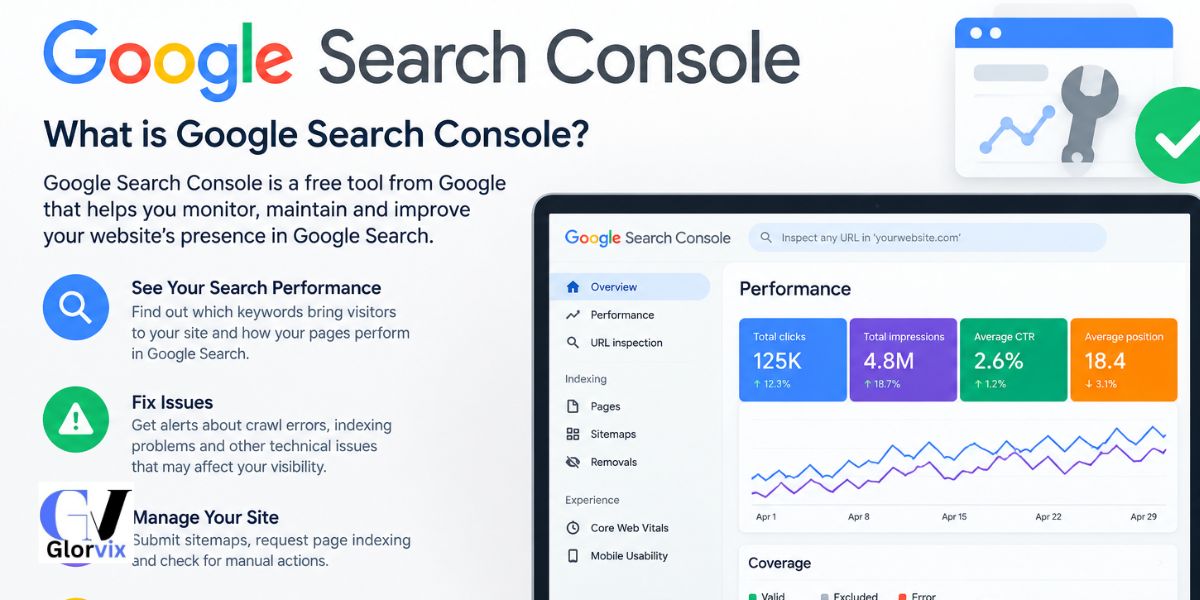
Google Search Console, often called GSC, is a free tool from Google that helps website owners monitor, understand, and troubleshoot their website’s performance in Google Search.
It provides information about search impressions, clicks, search queries, average search position, page indexing, website experience, and certain technical issues. You can also use it to submit a sitemap, inspect individual URLs, and request Google to crawl updated pages.
In simple words, Google Search Console helps you understand how Google Search interacts with your website and how people discover your content through Google.
For example, imagine you publish an article about home decoration. You want to know whether people can find it when they search for small living room ideas. Google Search Console can show you whether your page appeared for that query, how many times it was displayed, and how many people clicked on it.
You can use the same process for a business website, a technology blog, a fashion website, an educational resource, or an ecommerce store.
You can access the official tool here: https://search.google.com/search-console/
Why Is Google Search Console Important for SEO?
SEO involves making your website easier for search engines to understand and more useful for people searching for information. However, without reliable performance data, it can be difficult to know which improvements deserve your attention first.
Google Search Console gives you evidence that can help guide your decisions.
Suppose you publish 20 articles on your website. After a few weeks, you discover that five articles receive most of your search impressions, while the remaining pages receive very little visibility. Instead of making random changes to every article, you can investigate the pages that already show potential.
You might discover that one article ranks for several relevant queries but receives few clicks. Another page may not be indexed. A third article might attract visitors from a country you did not originally expect to target.
Each situation requires a different response, and Search Console helps you identify where to investigate.
Here are some of the main reasons I recommend using it:
- Understand which search queries display your website.
- Measure clicks and impressions from Google Search.
- Identify pages that are not indexed and investigate the reasons.
- Find content that may benefit from updating or improving.
- Compare search performance across countries and devices.
- Monitor certain website experience, security, and manual action issues.
- Evaluate changes after updating content or making technical SEO improvements.
Search Console does not automatically improve your rankings. It gives you information that you can use to make better SEO decisions.
How Does Google Search Console Work?
To understand Search Console properly, it helps to know what happens before a page appears in Google search results.
Google generally discovers and processes pages through three main stages: crawling, indexing, and serving search results.
1. Crawling
Crawling happens when Google uses automated programs, known as crawlers, to access web pages and discover their content and links.
Google may find a page through internal links, links from other websites, a sitemap, or other discovery methods.
If you publish a new article but do not link to it from anywhere on your website, Google may have a harder time discovering it.
2. Indexing
After discovering a page, Google processes its content and other information to decide whether it should be included in its search index.
A page that has been indexed can be eligible to appear in search results, but indexing does not guarantee that it will rank well or appear for every relevant query.
For example, you may publish an article targeting a specific keyword and successfully get the page indexed. It may still receive little traffic because it does not sufficiently answer the searcher’s question, faces strong competition, or has other ranking limitations.
3. Search results and performance
When someone searches on Google, Google determines which results are relevant to that particular search.
Search Console helps you understand how your website performs in this environment. It reports information such as impressions, clicks, search queries, and average position.
If a page is not appearing in Google, Search Console can help you investigate its indexing status. If it is already appearing, performance data can help you identify opportunities to improve its visibility and click-through rate.
What Can You Do With Google Search Console?
Google Search Console contains several reports and tools. You do not need to understand everything on your first day. Start with the features that help you answer your most important questions.
1. Monitor Search Performance
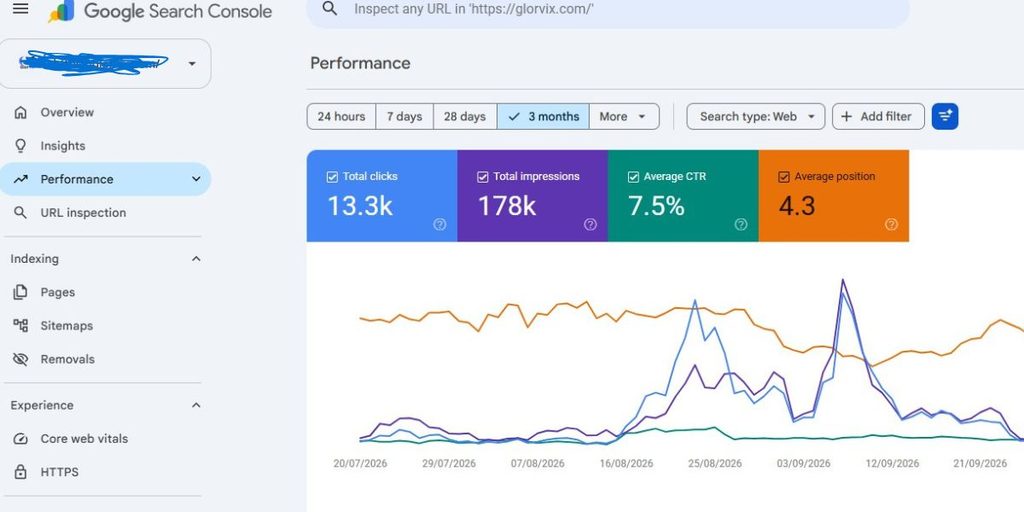
The Performance report shows how your website performs in Google Search.
You can review the search queries that display your pages, the pages receiving impressions and clicks, and performance differences across countries and devices.
For example, suppose your website receives impressions for the keyword “best free SEO tools.” If that query generates impressions but very few clicks, you can examine your search result title, description, ranking position, and the competing results.
The goal is not to change everything immediately. First, identify a pattern and decide whether a change is likely to help the searcher.
2. Check Page Indexing
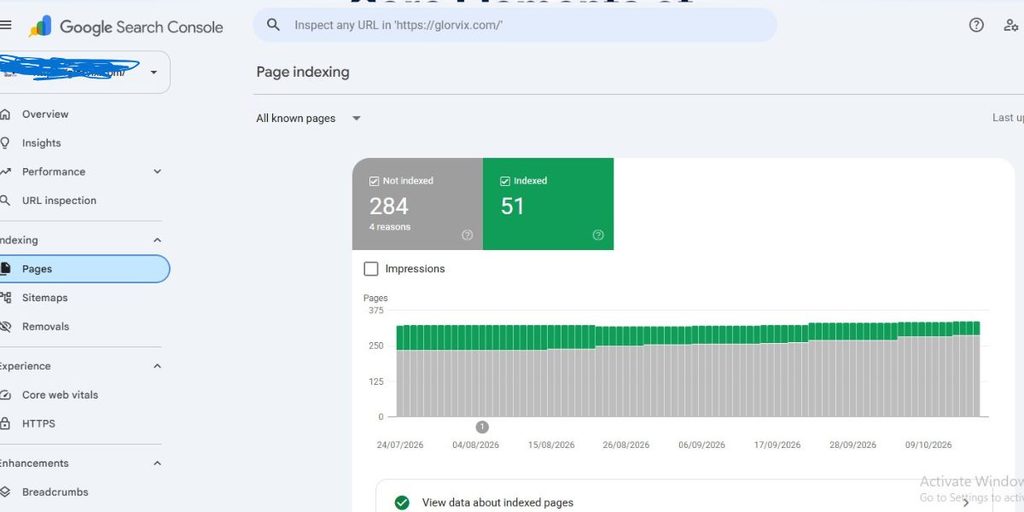
The Page Indexing report helps you understand which URLs Google has indexed and which have not been indexed.
A non-indexed page is not necessarily a page with an error. Some URLs may be duplicates, intentionally excluded from indexing, redirected, or otherwise unsuitable for appearing in search results.
For example, if an important blog post is not indexed, you should investigate the reported reason. Check whether the page returns a successful response, whether it has a noindex directive, whether crawling is blocked, and whether Google has selected a different canonical URL.
Do not try to force every URL into Google’s index. Focus on the important pages that should be available in search results.
3. Inspect Individual URLs
The URL Inspection tool lets you investigate a specific page.
Enter the complete URL in the inspection bar to see information about Google’s indexed version of the page. You can also run a live test to check whether the current page appears accessible and eligible for indexing.
This is particularly helpful after publishing an important article or fixing an indexing problem.
If the page is eligible, you may be able to request indexing. However, a request does not guarantee that Google will index the page immediately, or at all.
4. Submit a Sitemap
A sitemap is a file that lists URLs you want search engines to discover.
For example, a WordPress website may have a sitemap at an address such as https://example.com/sitemap_index.xml. Your actual sitemap address depends on your website platform and configuration.
You can submit the correct sitemap through the Sitemaps report in Search Console.
A sitemap can help Google discover important URLs, particularly on larger websites or recently launched sites. However, submitting one does not guarantee that every listed page will be crawled, indexed, or ranked.
5. Review Core Web Vitals
The Core Web Vitals report helps you understand how real users experience the loading speed, responsiveness, and visual stability of eligible pages.
These measurements can help you identify pages that may need technical improvements.
For instance, if important landing pages have poor loading performance, you may need to investigate oversized images, slow server responses, unnecessary scripts, or other performance problems.
Search Console can help identify affected URLs, while other tools may be needed to diagnose and fix the underlying causes.
6. Check Security Issues and Manual Actions
Search Console can alert you to certain security issues and manual actions affecting your website.
A security issue may indicate that Google has detected content or behavior that could put visitors at risk. A manual action means Google’s review process has identified a violation of its spam policies.
If you receive an alert, read the details carefully and follow Google’s recommended steps. Do not ignore these reports, particularly if the issue affects important pages or the safety of your visitors.
7. Analyze Links to Your Website
The Links report provides information about links Google has identified between websites and pages.
You can use it to explore external websites linking to your content, commonly linked pages, and internal linking patterns.
For example, if one of your guides attracts links from relevant websites, you may want to understand why that content is useful and apply similar principles to future articles.
Remember that the report is not a complete list of every link on the internet. Use it as one source of information rather than the only way to evaluate your backlink profile.
How to Set Up Google Search Console Step by Step
Setting up Google Search Console is straightforward, even if you are new to SEO.
Step 1: Open Google Search Console
Visit https://search.google.com/search-console/ and sign in with your Google account.
Choose the account you want to use for managing your website’s search data.
Step 2: Add Your Website
Google provides two main property types: Domain and URL-prefix.
A Domain property covers the domain and its subdomains and protocols. It requires DNS verification.
A URL-prefix property covers URLs under the specific prefix you enter. It can offer different verification methods, depending on your website and configuration.
For example, if you want to monitor a website called example.com, consider using the Domain property when you can verify ownership through DNS.
If you choose a URL-prefix property, enter the full prefix, such ashttps://www.example.com/, and understand that a different protocol or hostname may be a separate property.
Step 3: Verify Ownership
Google needs to confirm that you have permission to access the website’s Search Console data.
For a Domain property, verification generally requires adding a DNS record through your domain provider.
For a URL-prefix property, available methods may include an HTML file, an HTML tag, a Google Analytics account, Google Tag Manager, or DNS verification, depending on eligibility and configuration.
Follow the instructions shown in your account. If you use WordPress, your hosting provider or SEO plugin may offer a convenient way to add the required verification tag.
Step 4: Submit Your Sitemap
After verification, find the Sitemaps report and enter your sitemap URL.
First, confirm that the sitemap exists and contains the URLs you want Google to discover. A sitemap should not be treated as a list of URLs that must all be indexed.
After submission, check the reported status and investigate any errors that appear.
Step 5: Inspect Important Pages
Use URL Inspection to check your homepage and a few important pages.
Start with your main service pages, category pages, and key articles. Look for indexing problems that could prevent these pages from appearing in search results.
If you recently published or updated a page, you can request indexing when the option is available. Then allow time for Google to process the request.
Step 6: Review Performance Data
Once enough data becomes available, open the Performance report and review your queries, pages, countries, devices, clicks, and impressions.
Use this information to establish a baseline. You can then compare performance over time and evaluate whether your SEO changes are producing useful results.
Understanding the Four Main Google Search Console Metrics
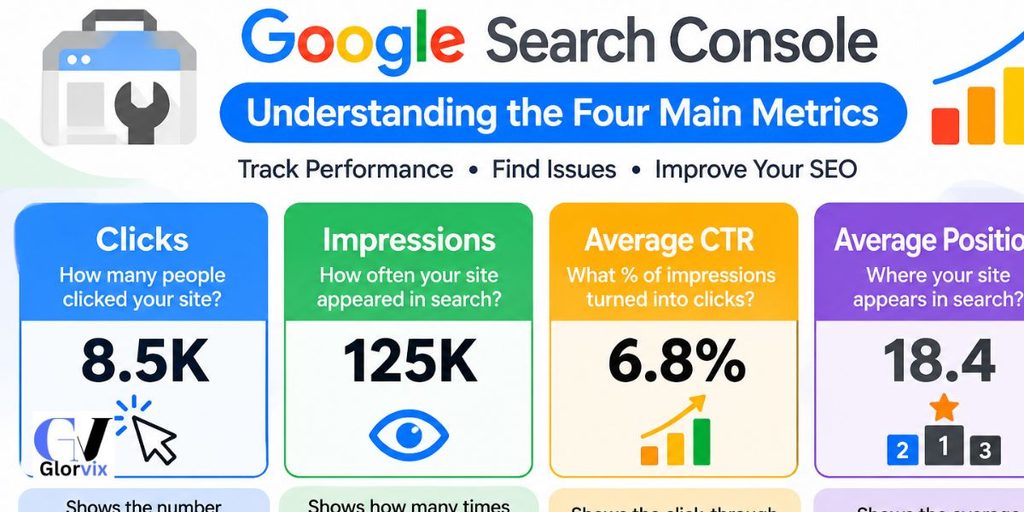
If you want to use Search Console effectively, you need to understand its main performance metrics.
| Metric | What It Means | How to Use It |
|---|---|---|
| Clicks | The number of clicks from Google Search to your website | Understand which queries and pages attract visitors |
| Impressions | How often your website appears in Google Search results | Find queries and pages receiving search visibility |
| Click-through rate (CTR) | The percentage of impressions that result in clicks | Investigate whether search snippets attract relevant users |
| Average position | An aggregated position metric for your website or result | Track broad ranking trends and investigate changes |
What Are Impressions?
An impression means your result was displayed in Google Search in a way that qualifies under Google’s measurement rules.
Suppose your article receives 1,000 impressions during a selected period. This means it was shown 1,000 times according to Search Console’s reporting rules. It does not mean 1,000 different people visited your website.
Impressions help you understand whether Google is showing your content to searchers.
What Are Clicks?
Clicks represent visits generated when people click your website’s result in Google Search.
If an article receives 100 clicks, those clicks can help you understand how much traffic the page attracted from Google Search during the selected period.
Clicks in Search Console may not exactly match sessions in Google Analytics because the tools measure different things and use different reporting methods.
What Is Click-Through Rate?
Click-through rate, or CTR, measures the proportion of impressions that result in clicks.
For example, if a page receives 1,000 impressions and 50 clicks, its CTR is 5%.
You can calculate it as:
CTR = (Clicks ÷ Impressions) × 100
A low CTR is not automatically a problem. It can be affected by ranking position, search intent, the type of search results displayed, the query itself, and competition.
Before changing a title or description, review the page’s queries and compare its performance with similar periods.
What Is Average Position?
Average position is a summary of the position of your highest result for your site, calculated across the relevant impressions.
For example, an average position of 8 does not mean your page will always appear in the eighth position for every visitor. Rankings vary by query, location, device, time, and search context.
Use average position to observe trends rather than treating it as a fixed ranking.
How to Use Google Search Console to Find SEO Opportunities
The most useful way to learn Search Console is to apply it to real website data.
Here is the process I would follow.
Step 1: Find Queries Receiving Impressions
Open the Performance report and select the Queries tab.
Look for relevant search terms that already generate impressions. These queries can reveal what people are searching for when Google displays your content.
For example, a website that publishes SEO tutorials may discover that one article receives impressions for “how to check website indexing” even though the article was originally written around a different keyword.
This allows you to review whether the page answers that related question clearly.
Step 2: Find Pages With Impressions but Few Clicks
Open the Pages tab and review the pages that receive search visibility but attract relatively few clicks.
Select a page and examine its associated queries. Consider whether the title accurately communicates the page’s value and whether the content matches the searcher’s intent.
Do not assume that every low-CTR page needs a new title. A page ranking near the bottom of the first page may naturally receive fewer clicks than a page near the top.
Step 3: Investigate Pages That Are Not Indexed
Open the Page Indexing report and identify important URLs that are not indexed.
Check the reason shown by Google. Depending on the issue, you may need to improve internal links, correct a technical error, remove an unintended noindex directive, or clarify which version of a page should be indexed.
A page that is intentionally excluded from search results may not require any action.
Step 4: Compare Performance Across Countries
If your website serves an international audience, the Countries tab can help you understand where your Google Search impressions and clicks originate.
Suppose your website targets readers in the USA, UK, Australia, Canada, India, and Pakistan. You may discover that an article receives more search visibility in India than in Australia.
Investigate the queries and pages behind that difference. You might find that people in different countries use different wording or show interest in different aspects of the topic.
Use these findings to make your content more relevant where appropriate. Do not assume that every country needs a separate version of every article.
Step 5: Update Content Based on Evidence
After identifying an opportunity, make a specific improvement.
You might add a missing explanation, improve a confusing heading, include a practical example, fix an outdated fact, or make an important section easier to find.
Record the date of your changes and review performance over an appropriate period. Search performance can fluctuate, so avoid attributing every increase or decrease to a single edit.
How to Use Google Search Console for International SEO
Google Search Console is useful for websites that want to attract visitors from multiple countries.
You do not necessarily need a separate website for every country. A single website can reach an international audience if its content satisfies the needs of those readers and is technically accessible to Google.
Start by opening the Performance report and selecting the Countries tab. Review which countries generate impressions and clicks for your important pages.
Next, investigate the Queries and Pages tabs. This helps you understand whether the same page performs differently across markets.
For example, people in the USA might search for “best website hosting for small business,” while users in India may use a more price-focused variation of the same topic. These are possibilities to investigate in your own data, not assumptions to apply to every website.
If your website publishes genuinely different language versions, consider implementing appropriate international SEO practices, including correct language and regional annotations where needed. Search Console can help you monitor performance, but it does not automatically translate content or create an international SEO strategy.
For a website targeting the USA, Australia, Pakistan, India, Bangladesh, China, Nepal, Canada, the UK, and the UAE, I would begin with country-level data and then identify the specific queries and pages that show opportunities in each market.
The objective is to serve readers better, not to repeat country names throughout an article simply to target more locations.
Google Search Console vs. Google Analytics
Google Search Console and Google Analytics are both useful, but they answer different questions.
Google Search Console focuses on your website’s performance in Google Search. Google Analytics helps you understand what happens when people visit your website and interact with it, depending on your tracking setup.
| Feature | Google Search Console | Google Analytics |
|---|---|---|
| Main purpose | Understand Google Search visibility and performance | Understand website visits and user interactions |
| Search queries | Provides eligible Google Search query data | Does not provide the same Search Console query report |
| Search impressions | Yes, for supported Google Search reporting | Not its primary purpose |
| Website sessions | Not its primary reporting metric | Yes |
| User engagement | Limited to its search-related context | Provides engagement and event reports |
| Indexing information | Yes | No equivalent indexing report |
| Technical search diagnostics | Provides search-related reports and tools | Provides different website analytics information |
I would use Search Console to understand how people find a website through Google. Then I would use Google Analytics to explore what visitors do after they arrive.
When both tools are configured properly, they provide complementary information that can support better content and marketing decisions.
Common Google Search Console Mistakes to Avoid
Many website owners create a Search Console account but do not use its information to improve their websites. Others misinterpret the reports and make unnecessary changes.
Here are some mistakes worth avoiding.
1. Expecting instant indexing: Requesting indexing does not guarantee that a page will appear in Google immediately.
2. Treating every excluded URL as an error: Some URLs should not be indexed, including certain duplicate or redirected pages.
3. Checking rankings without considering context: Average position is a summary metric, not a guarantee of a fixed ranking for every search.
4. Making changes after a small data fluctuation: Search performance naturally changes. Look for meaningful patterns before making major decisions.
5. Ignoring search intent: A page may receive impressions but few clicks because it does not match what users expect to find.
6. Submitting a sitemap and doing nothing else: A sitemap helps Google discover URLs, but you should also ensure important pages are accessible, useful, and linked appropriately.
7. Expecting Search Console to fix SEO automatically: The tool identifies information and potential problems. Website owners still need to investigate and implement suitable improvements.
How Often Should You Check Google Search Console?
You do not need to check Google Search Console every few hours.
For a new blog or small business website, checking it weekly can be a practical way to learn how your content performs. Once you understand your normal traffic patterns, a monthly review may be enough for routine monitoring, with additional checks after important website changes or when Google sends an alert.
For larger websites, frequent publishing schedules, major technical updates, or sudden traffic changes, more regular monitoring may be useful.
When reviewing your data, compare similar date ranges and remember that recent information may not always be complete.
I would focus on three questions during a routine review:
- Which pages and queries are gaining or losing search visibility?
- Are important pages experiencing indexing or technical problems?
- What specific improvement should I make next?
These questions help turn Search Console from a reporting dashboard into a practical part of your SEO workflow.
Frequently Asked Questions
Is Google Search Console free?
Yes. Google Search Console is a free service from Google. You can use its supported reports and tools without purchasing an SEO subscription.
Is Google Search Console good for beginners?
Yes. Beginners can start by verifying their website, submitting a sitemap when appropriate, checking important URLs, and reviewing clicks and impressions. You can learn the more advanced reports as your website grows.
Does Google Search Console improve rankings?
No. Search Console does not directly improve your rankings. It provides information that helps you identify potential SEO improvements, investigate indexing issues, and measure search performance.
Can I use Google Search Console without a website?
You generally need to verify ownership of a website property to access its Search Console data. You cannot use it to inspect the private performance reports of a website you do not control.
How long does Google Search Console take to show data?
It can take several days for performance data to become available, and reporting is not always real time. New properties may need time to accumulate meaningful data. The timing varies by report and website.
Can Google Search Console show my website’s keywords?
Yes. The Performance report can show queries for which your website appeared in Google Search. However, query reporting has limitations, and not every search query is necessarily displayed.
Why is my website not appearing on Google?
Possible reasons include a new website, an undiscovered URL, crawling problems, indexing restrictions, duplicate content, or other technical and content-related issues. Use URL Inspection and the Page Indexing report to investigate the specific page rather than guessing.
Does submitting a sitemap guarantee indexing?
No. A sitemap helps Google discover URLs, but it does not guarantee that Google will crawl, index, or rank every submitted page.
Can Google Search Console show traffic by country?
Yes. The Performance report includes a Countries breakdown for supported search performance data. You can use it to understand how your website performs across different markets.
What is the difference between Google Search Console and Google Analytics?
Search Console focuses on Google Search visibility, queries, clicks, impressions, and indexing. Google Analytics focuses on website activity, such as sessions and user interactions. Using both gives you a broader view of your website’s performance.
Should I use Google Search Console for a small blog?
Yes. Even a small blog can benefit from understanding which articles appear in Google, which search queries generate impressions, and whether important pages are indexed.
Can I request Google to index a new blog post?
Yes. If you have verified the website, you can use URL Inspection to request indexing for an eligible URL. Google decides whether and when to crawl and index the page, so the request is not a guarantee.
Final Thoughts
Google Search Console is one of the most useful free tools for understanding how your website performs in Google Search. It helps you move beyond guessing by showing which pages attract attention, which search queries display your content, and where indexing or technical problems may need investigation.
If you are just starting, do not feel that you need to learn every report at once. Verify your website, check your important pages, review your sitemap, and become familiar with clicks, impressions, CTR, and average position.
As your website grows, use the information to identify meaningful opportunities. Improve pages that do not fully answer users’ questions, investigate technical issues that affect important URLs, and study the search queries that reveal what your audience needs.
For international websites, the Countries report can also help you understand where your organic search visibility comes from and which content deserves more attention in different markets.
The most important lesson is simple: collecting data is only the first step. The real value comes from understanding that data, making thoughtful improvements, and checking whether those changes help users find and use your content.