
To improve your website’s visibility on Google, you need to understand how people find your content and which pages attract search traffic. Publishing articles is only one part of SEO. You also need to check whether Google displays those articles in search results and identify opportunities to improve their performance.
This is where Google Search Console becomes useful.
I use a simple approach to analyzing SEO performance: first, I review the data, then look for patterns, and finally decide what needs improvement. Instead of changing website content randomly, you can use Google Search Console to understand what is happening and make more informed decisions.
In this guide, I will explain how to use Google Search Console for SEO, from checking your search performance to finding keyword opportunities, identifying indexing problems, and improving existing content.
Whether you run a blog, an ecommerce store, a business website, or a content platform, these steps can help you build a more organized SEO process.
What Is Google Search Console Used for in SEO?
Google Search Console is a free Google tool that helps website owners monitor their website’s performance in Google Search. It provides information about search queries, clicks, impressions, average position, and indexing status.
For SEO, its main purpose is to help you understand how Google Search users discover your pages and whether your important URLs can appear in search results.
For example, imagine you publish an article about website speed. You may want to know whether people find it through searches such as “how to improve website speed” or “website loading speed test.”
Google Search Console can show queries that generate impressions for your website, along with clicks and other performance metrics. You can use this information to decide whether the article needs clearer explanations, additional information, or a better match with the searcher’s needs.
It is important to understand that Google Search Console does not automatically improve rankings. It provides data that you can use to identify potential improvements.
If you are new to the tool, first read our guide on what Google Search Console is. It explains the basics before you move on to practical SEO analysis.
Step 1: Set Up Google Search Console
Before you can use the reports, you need access to a verified website property.
Visit https://search.google.com/search-console/ and sign in with your Google account.
If your website is not already added, select the option to add a property. You will generally see two property types.
Domain property: Covers the domain and its subdomains across protocols. It requires DNS verification.
URL-prefix property: Covers URLs under the specific prefix you enter, such as https://www.example.com/. Verification methods depend on the property and your setup.
Choose the option that suits your website and follow Google’s verification instructions.
Once your website is verified, open Search Console and become familiar with the main reports. You do not need to understand every report immediately. Start with Performance, URL Inspection, and Page Indexing.
If you use WordPress, make sure the property you add corresponds to your actual website domain and preferred URL version.
Step 2: Use the Performance Report
The Performance report is one of the most useful places to begin your SEO analysis.
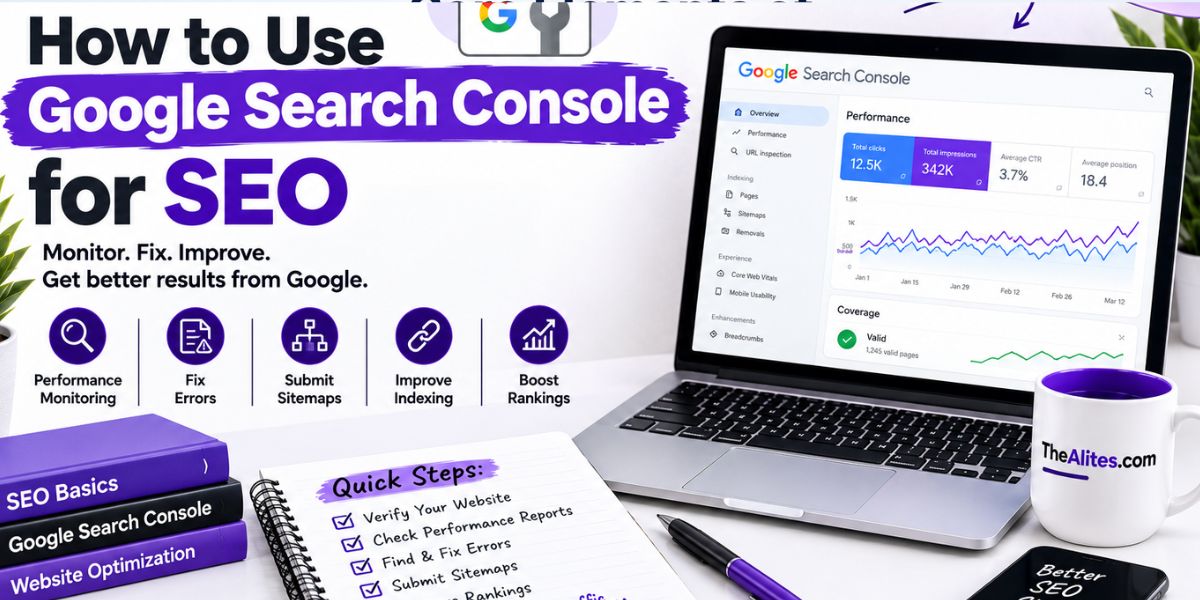
It shows how your website performs in Google Search through metrics such as clicks, impressions, click-through rate, and average position.
To get started:
- Open your Google Search Console property.
- Select the Performance report for Search results.
- Choose a date range.
- Review the performance chart.
- Scroll down to explore queries, pages, countries, and devices.
These dimensions help you understand which search terms display your website, which pages attract visitors, and where your search visibility comes from.
For example, suppose you notice that an article receives impressions every week but generates very few clicks. You can select the page and examine its search queries. This may help you understand whether the content matches the searches that display it.
Do not immediately rewrite the article. First, investigate its ranking positions, search intent, title, and competing search results.
Step 3: Understand Clicks, Impressions, CTR, and Position
To make useful SEO decisions, you need to understand the metrics in the Performance report.
Clicks
Clicks represent clicks from Google Search results to your website.
If a blog post receives 80 clicks during a selected period, it attracted 80 clicks according to Search Console’s reporting rules. This number may not exactly match your website’s analytics sessions because the tools measure different things.
Impressions
Impressions show how often your result appeared in Google Search according to Google’s measurement rules.
A page with many impressions may have an opportunity to attract more visitors, but you should also check whether those impressions come from relevant queries.
Click-through rate
Click-through rate, or CTR, is the percentage of impressions that result in clicks.
For example, if your page receives 2,000 impressions and 100 clicks, its CTR is 5%.
You can calculate it using this formula:
CTR = (Clicks ÷ Impressions) × 100
A low CTR does not always mean that your title is poor. Search position, search intent, result features, and competition can all affect the likelihood of a click.
Average position
Average position is a summary of where your highest result appeared in Google Search across the relevant impressions.
It does not mean your website always appears in the same position for every person or search.
Use these metrics together rather than relying on one number. For example, impressions can show visibility, clicks can show traffic from search results, and CTR can help you investigate how often impressions turn into clicks.
Step 4: Find Keyword Opportunities in Google Search Console
One of the most practical ways to use Search Console for SEO is to review the queries for which your website already appears.
Open the Performance report and select the Queries tab.
You will see available search queries associated with your website’s performance. Some queries may match your target keywords, while others may reveal related topics you had not considered.
For example, suppose you publish an article targeting “website SEO checklist.” Your Search Console data might also show queries related to technical SEO checks, internal linking, or website indexing.
These related queries can help you understand what readers are looking for.
Here is how I would investigate a potential keyword opportunity:
- Open the Queries tab.
- Look for relevant queries that receive impressions.
- Select a query to filter the report.
- Review the Pages tab to see which page is associated with it.
- Check whether that page adequately answers the searcher’s question.
- Decide whether to improve the existing page or create a separate article.
Be careful not to create a new article for every query. If several queries express the same search intent, one comprehensive page may serve them better.
If you want a dedicated walkthrough of this process, read our related guide on How to Find Keywords in Google Search Console.
Step 5: Identify Pages That Need SEO Improvements
The Pages tab in the Performance report helps you identify which URLs receive search impressions and clicks.
Sort or review the available data to find pages that may deserve attention.
I recommend investigating three types of pages.
Pages with impressions but few clicks
These pages appear in Google Search but attract relatively few clicks.
Check their average position and the queries associated with them. If the page is relevant to those searches, review whether the title accurately describes its value and whether the content satisfies the search intent.
Do not make changes based on CTR alone. A page ranking lower in the results may naturally receive fewer clicks.
Pages losing search visibility
Compare two suitable date ranges to identify pages that have experienced a decline in clicks or impressions.
Next, investigate which queries changed and whether the decline affects one page or many pages.
Possible explanations include changes in demand, competition, search results, content relevance, or technical accessibility. Search Console can help you identify the pattern, but further investigation may be needed to establish the cause.
Pages with growing impressions
Pages receiving increasing impressions may be gaining visibility for relevant queries.
Review those queries and determine whether the article provides a useful answer. If you find an important question that the content does not fully address, consider adding a clear explanation or a practical example.
The objective is to improve the page for readers, not simply to add more words.
Step 6: Check Whether Important Pages Are Indexed
Your content needs to be indexed to be eligible to appear in standard Google Search results. However, indexing alone does not guarantee rankings or traffic.
Google Search Console provides tools to help you investigate individual URLs and broader indexing patterns.
Use URL Inspection
Copy the complete URL of an important page and paste it into the inspection bar at the top of Search Console.
Review the reported status and details.
If the page is indexed, you can review the available information about Google’s indexed version. If it is not indexed, examine the reported reason and investigate whether an issue needs to be fixed.
You can also run a live test to check the current page’s accessibility and eligibility for indexing.
After correcting an issue, you may request indexing where available. This does not guarantee immediate indexing.
Review the Page Indexing report
The Page Indexing report helps you understand which URLs Google has indexed and which have not been indexed.
Not every excluded URL is a problem. Some URLs may be duplicates, redirected, intentionally excluded, or unsuitable for indexing.
Focus on important pages that you actually want to appear in search results.
If your article is not indexed, check our upcoming related guide, How to Fix Pages Not Indexed by Google, for a more detailed troubleshooting process.
Step 7: Analyze Your Website’s Performance by Country
If your website targets readers in multiple countries, the Countries tab can help you understand where your Google Search visibility comes from.
Open the Performance report and select Countries.
You can review clicks and impressions for different markets, including the USA, Australia, Pakistan, India, Canada, the UK, and other countries where your website receives search visibility.
Suppose an article receives more impressions from India than from Australia. This does not automatically mean you should create a separate article for each country.
Instead, investigate the queries and pages behind the difference. Look for meaningful variations in wording, user needs, or search intent.
For international SEO, the best approach is to create content that is genuinely useful to your intended audience. Country data can guide your decisions, but repeating country names in an article will not guarantee visibility in those markets.
Step 8: Use Search Console to Monitor Technical SEO
Google Search Console can also help you investigate certain technical issues that affect search performance.
Depending on your website and available reports, you can monitor indexing, inspect URLs, review Core Web Vitals, and check for security issues or manual actions.
Check Core Web Vitals
The Core Web Vitals report provides information about real-world page experience measurements for eligible URLs.
If important pages show poor results, investigate potential causes such as slow server responses, large images, unnecessary scripts, or layout shifts.
You may need additional tools to diagnose the exact cause.
Review sitemap status
If you have submitted a sitemap, open the Sitemaps report to review its status and any reported problems.
A sitemap can help Google discover important URLs, but it does not guarantee that every submitted page will be crawled or indexed.
Investigate indexing problems
If an important page disappears from search results or is not indexed, use URL Inspection and the Page Indexing report to investigate.
Check the reported details before making changes. Avoid removing technical restrictions unless you understand why they were added.
Step 9: Create a Simple Monthly SEO Workflow
You do not need to spend hours in Search Console every day. A consistent review process is often more useful than checking numbers repeatedly without taking action.
Here is a simple workflow you can adapt to your website.
| Task | What to Check | Next Action |
|---|---|---|
| Review performance | Clicks, impressions, and queries | Identify meaningful changes |
| Review important pages | Pages gaining or losing visibility | Investigate relevant opportunities |
| Check keyword data | Queries related to your topics | Improve content where needed |
| Check indexing | Important URLs and reported issues | Fix verified problems |
| Review technical reports | Available Core Web Vitals or security information | Investigate issues that affect users |
| Record changes | Dates and improvements made | Compare results over time |
Keep a simple spreadsheet with the page URL, the issue or opportunity, the action taken, and the date of the change.
This makes it easier to evaluate your SEO work over time and reduces the temptation to make random changes after small fluctuations.
Common Mistakes to Avoid When Using Google Search Console
Even though Search Console is straightforward to access, some mistakes can lead to poor SEO decisions.
Changing titles too quickly: Before editing a title, review the page’s queries, average position, and search intent.
Creating an article for every keyword variation: Similar queries may be better covered by one strong article instead of several repetitive pages.
Trying to index every URL: Some URLs should remain outside Google’s index. Focus on pages that deserve to appear in search results.
Expecting immediate results: Google may take time to crawl and process changes. Rankings can also fluctuate for reasons unrelated to your edits.
Ignoring user needs: Search data is useful, but it does not replace clear writing, accurate information, and genuinely helpful content.
Assuming correlation proves the cause: If traffic increases after an update, the update may have contributed, but other changes can also affect performance. Compare data carefully.
Frequently Asked Questions
How do I use Google Search Console for SEO?
Verify your website, open the Performance report, review queries and pages, check important URLs for indexing problems, and use the data to identify content or technical improvements.
Can Google Search Console help improve rankings?
It can help you identify potential SEO improvements, but it does not directly improve rankings. You need to investigate the data and make suitable changes to your website.
How can I find keywords in Google Search Console?
Open the Performance report and select Queries. Review relevant queries that generate impressions, then examine the associated pages to identify content opportunities.
Why does my page have impressions but no clicks?
Possible reasons include low search position, limited relevance to the query, strong competition, or search results that do not encourage users to click. Review the page’s queries and performance before deciding what to change.
How often should I check Google Search Console?
For many small websites, a weekly or monthly review is a reasonable starting point. Check more frequently after important technical changes or when investigating a sudden performance decline.
Does Google Search Console show all my keywords?
No. It provides available query data, but some queries may not appear because of privacy protections and reporting limitations. Treat the report as useful evidence, not a complete list of every search.
Is Google Search Console enough for SEO?
It is a valuable tool, but it does not cover every aspect of SEO. You may also need analytics, keyword research, content review, technical testing, and other tools depending on your goals.
Final Thoughts
Google Search Console can help you make SEO decisions based on evidence instead of guesswork. By reviewing search queries, analyzing page performance, checking indexing status, and monitoring technical reports, you can better understand how your website performs in Google Search.
Start with the Performance report and focus on a few important pages. Identify a meaningful opportunity, make a specific improvement, and review the results over time.
You do not need to change everything at once. Consistent analysis, helpful content, and careful technical troubleshooting can help you build a more effective SEO process.